My side projects had a staging gap.
Local Docker was useful for checking an application before a release, but it still ran on my laptop. A larger AWS setup with a VPC, load balancer, container platform, and deployment pipeline would answer a different question and create much more infrastructure than I needed.
I wanted something in the middle: one server with a stable address, controlled access, repeatable deployment, a health check, and enough recovery behavior to be useful during development.
So I tested Amazon Lightsail as a small staging environment instead of treating it as a simplified hosting tutorial.
The Smallest Useful Staging Stack
I deliberately kept the architecture narrow:
Developer laptop
  ├── Terraform → Lightsail instance, SSH key, static IP, firewall
  └── deploy.sh → SSH/SCP → Docker Compose
                              └── Node.js app
                                   ├── /health
                                   └── /version
The instance ran Ubuntu 24.04 in ca-central-1 on the Micro 1 GB Linux plan with public IPv4. AWS currently lists that bundle at $7 per month, billed hourly up to the monthly maximum.
There was no database, load balancer, Kubernetes cluster, or CI/CD system. The point was to learn whether one developer could operate a useful staging VM without quietly building a small platform team around it.
Step 1: Define More Than an Instance
The Terraform resource for the VM was only one part of the environment:
resource "aws_lightsail_instance" "lightsail_instance" {
  name              = "${var.project_name}-lightsail-instance"
  availability_zone = var.availability_zone
  blueprint_id      = var.blueprint_id
  bundle_id         = var.bundle_id
  key_pair_name     = aws_lightsail_key_pair.lightsail_instance_key.name
  user_data         = file("${path.module}/../scripts/bootstrap.sh")
}
I also needed a custom SSH public key, a static IP, the attachment connecting that address to the instance, and explicit firewall rules.
The static IP was not just extra Terraform. Lightsail's default public IPv4 address can change when an instance is stopped and started. A staging endpoint is much easier to use when its address stays stable, and Lightsail lets the same static address move to a replacement instance later.
The SSH key had a similarly clear boundary. Terraform uploaded only the public key:
resource "aws_lightsail_key_pair" "lightsail_instance_key" {
  name       = "${var.project_name}-key"
  public_key = file(pathexpand(var.ssh_public_key_path))
}
The private key never entered Terraform, the repository, or the article.
Step 2: Replace the Default Firewall Rules
A base Lightsail Linux instance can start with SSH on port 22 and HTTP on port 80 open to every address. That is convenient for a first connection, but it was wider than this experiment required.
I replaced those defaults with two rules restricted to my temporary public /32 address:
resource "aws_lightsail_instance_public_ports" "lightsail_instance_firewall" {
  instance_name = aws_lightsail_instance.lightsail_instance.name

  port_info {
    protocol  = "tcp"
    from_port = 22
    to_port   = 22
    cidrs     = [var.developer_cidr]
  }

  port_info {
    protocol  = "tcp"
    from_port = 80
    to_port   = 80
    cidrs     = [var.developer_cidr]
  }
}
The Lightsail firewall documentation recommends limiting SSH to the address that needs administrative access. I restricted HTTP as well because this was a private experiment, not a public site.
For a real shared staging environment, the source ranges and access model would need another review. A developer's changing home IP is manageable for a short test but awkward for a team.
Step 3: Make Application State Observable
The application was intentionally small. It used Node's built-in HTTP module and exposed two endpoints:
if (request.url === "/health") {
  return sendJson(response, 200, { status: "ok" });
}

if (request.url === "/version") {
  return sendJson(response, 200, { version });
}
/health answered whether the process was responding. /version answered whether the expected deployment was running.
Those endpoints were more useful than a generic home page because each test had a precise success condition.
Docker Compose added the recovery policy and its own health check:
services:
  app:
    build:
      context: .
    environment:
      APP_VERSION: ${APP_VERSION:-local}
    ports:
      - "${HOST_PORT:-8080}:3000"
    restart: unless-stopped
    healthcheck:
      test:
        - CMD
        - node
        - -e
        - >-
          require('node:http').get('http://127.0.0.1:3000/health',
          response => process.exit(response.statusCode === 200 ? 0 : 1))
          .on('error', () => process.exit(1))
      interval: 5s
      timeout: 3s
      retries: 6
The container also ran as a non-root application user. No application secret was required, and the generated .env file on the server had mode 0600.
Step 4: Keep Deployment Separate From Terraform
Terraform created the server. A separate deployment script copied the application files over SSH and ran Compose:
./scripts/deploy.sh "$host" v2 "<SSH_PRIVATE_KEY_PATH>"
On the server, the important command was:
sudo docker compose up --build --detach --remove-orphans
That separation mattered. Changing v1 to v2 did not require replacing the instance or changing Terraform state.
The verification script then checked both endpoints until they agreed with the requested release:
./scripts/verify.sh "$host" v2 120
The observed result was:
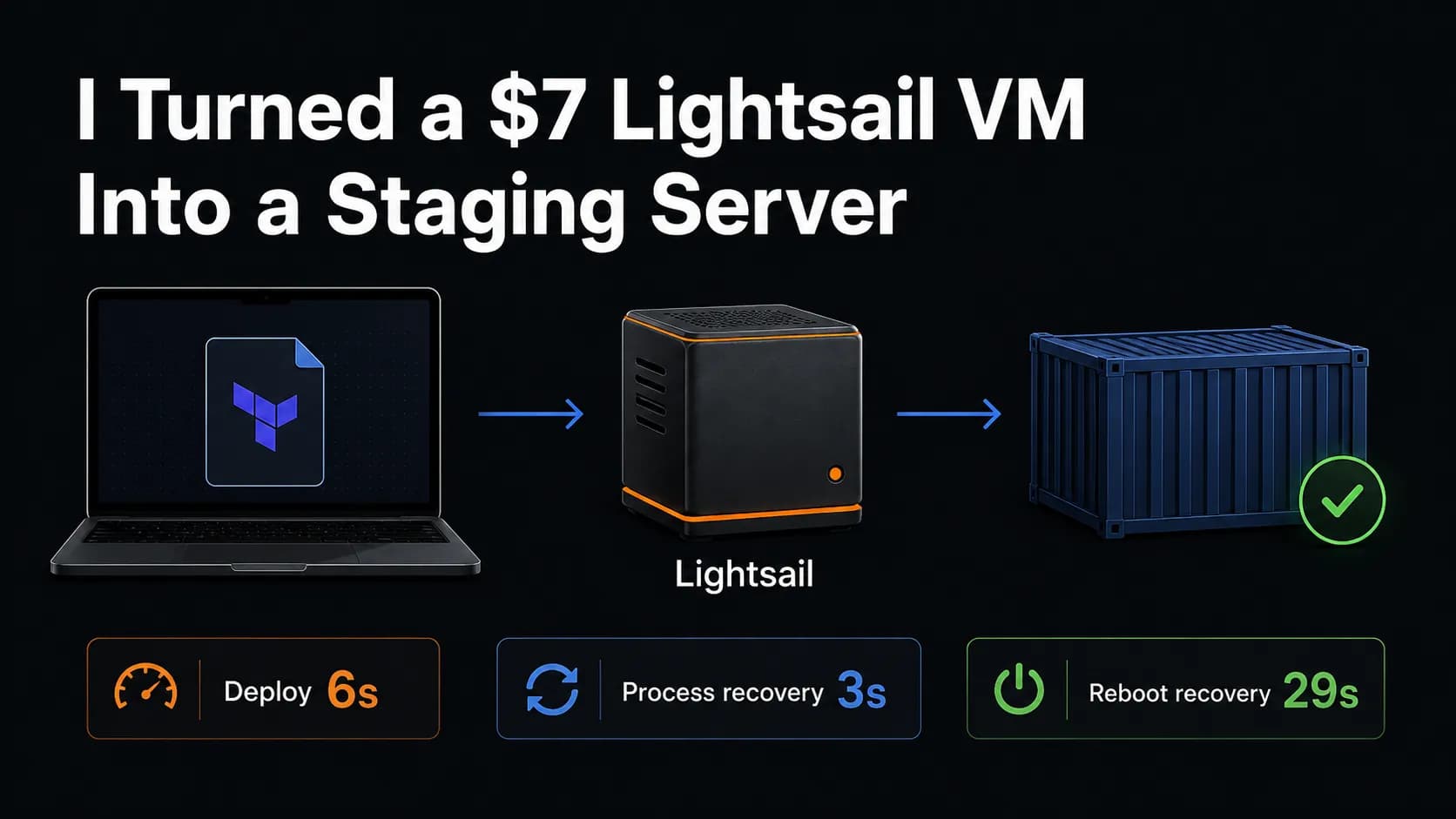
PASS health=ok version=v2 recovery_seconds=0The complete v1 to v2 deployment took 6 seconds, and the first verification request already returned the new version.
Step 5: What the Runtime Tests Showed
Configuration alone does not prove that recovery works, so I tested two common situations.
First, I stopped the application process inside the container:
./scripts/test-container-restart.sh \
  "<HOST>" \
  "http://<HOST>" \
  "<SSH_PRIVATE_KEY_PATH>"
Docker Compose restarted the application. The health and version endpoints returned after 3 seconds:
PASS health=ok version=v1 recovery_seconds=3Next, I rebooted the complete Lightsail server:
./scripts/test-instance-reboot.sh \
  "$host" \
  v1 \
  lightsail-staging-lab-lightsail-instance \
  "<AWS_PROFILE>" \
  ca-central-1
The application returned without another deployment and the result was :
PASS health=ok version=v1 recovery_seconds=25
PASS reboot_recovery_seconds=29
The complete reboot test took 29 seconds. This confirmed that Docker started with the server and Compose brought the application back automatically.
What Lightsail Simplified
For this experiment, Lightsail removed a large amount of AWS setup.
I did not have to design a VPC, public subnet, internet gateway, route table, EC2 security group, or separate EBS volume. The instance bundle made the compute, memory, SSD storage, public addressing, and transfer allowance understandable as one small plan.
The static IP and firewall were also easier to reason about than a larger network stack. Terraform still made those decisions explicit, but there were fewer components to connect.
That simplicity made Lightsail a reasonable fit for one small staging server.
What Lightsail Still Leaves to the Developer
Lightsail simplified the AWS layer. It did not operate the application for me.
I still owned:
operating-system updates;
Docker installation and service startup;
application deployment and rollback;
logs and alerting;
SSH-key handling;
firewall source-address changes;
backups and data recovery; and
verification after every change.
It also remained one VM. There was no multi-zone availability, autoscaling, managed rollout controller, or automatic load-balancer health replacement.
I would not choose this setup for a system that needs private application tiers, multiple instances, team scale access control, managed deployments, or strong availability guarantees. At that point, ECS, App Runner, Elastic Beanstalk, or a deliberately designed EC2 platform would deserve comparison.
Cost and Cleanup
The selected plan was $7 per month, but this experiment did not run for a month. AWS bills Lightsail instance bundles hourly up to the monthly maximum.
I did not collect final billing data, so I will not present an exact invoice. The resources existed for less than one day, making the theoretical instance-cost upper bound less than $0.24, before any free-tier discount. That is an estimate, not a billing record.
The experiment ended with:
terraform -chdir=terraform destroy \
  -var-file=terraform.tfvars
Terraform removed the instance, firewall configuration, static-IP attachment, static IP, and Lightsail key pair. A final state check returned no managed resources. The project created no snapshots, extra disks, load balancer, database, DNS zone, or Lightsail container service.
What I Would Use It For
Lightsail passed the part of the experiment that mattered most to my daily development workflow.
It gave me a small remote staging server with controlled access, a stable endpoint, fast redeployment, observable health, automatic process recovery, and reboot recovery. Terraform kept the AWS resources understandable, while Docker Compose kept application deployment separate.
I would use this pattern for a personal project, a short-lived demo, or a small integration environment where one VM is an acceptable availability tradeoff.
The next validation is narrower: run the final portable launch script through a completely unattended replacement and retain that result. Until then, this is a tested staging server pattern, not a production platform and not a claim of complete disaster recovery.
https://github.com/lalitbagga/lightsail-staging-lab