
Building a Serverless File Upload Pipeline: API Gateway, Lambda, S3, and SNS
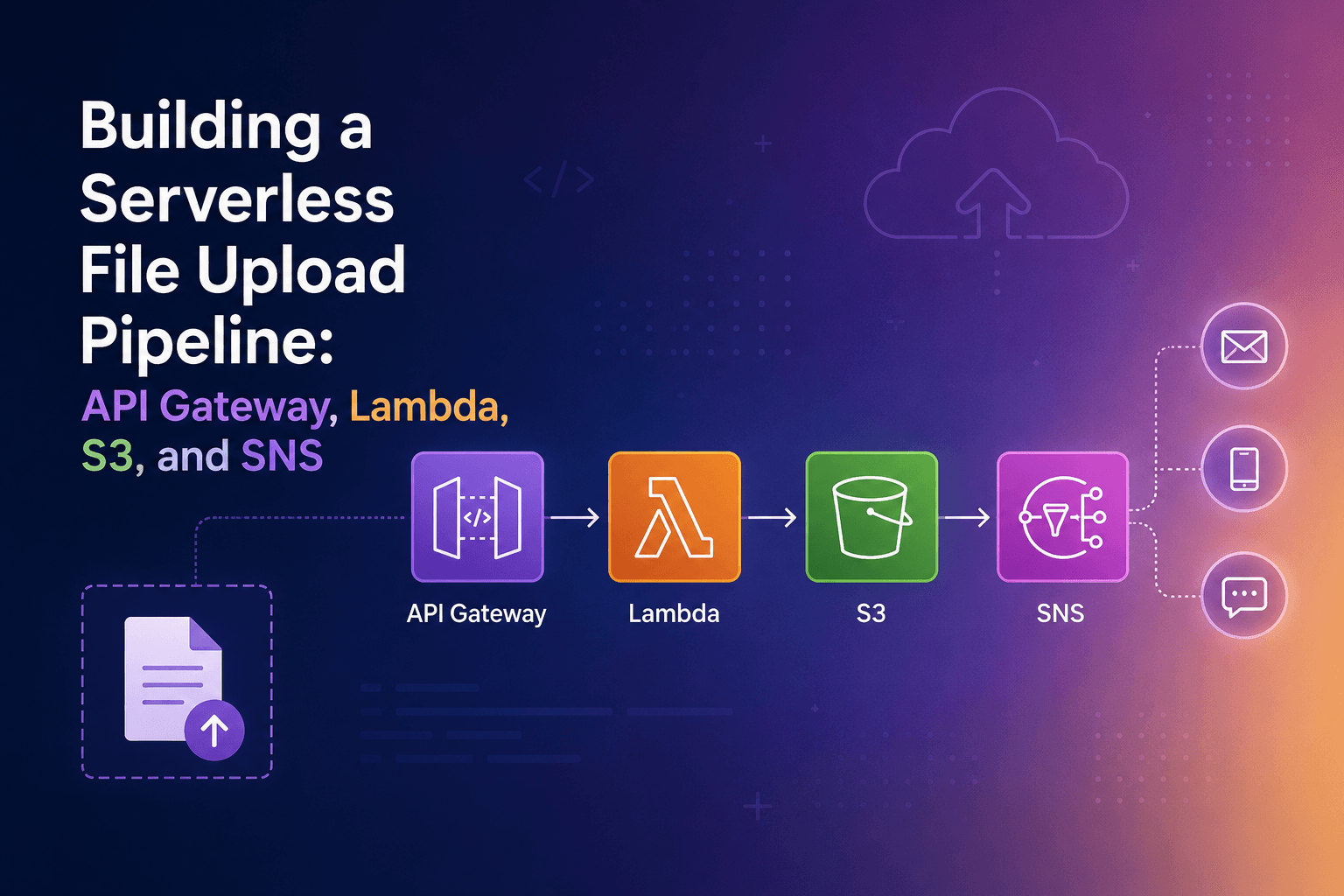
A step-by-step walkthrough of building a serverless file upload pipeline using API Gateway, Lambda, S3, and SNS , wiring four AWS services together from scratch.
Intro
In my last post, I broke AWS Lambda on purpose to understand IAM permissions. This time I wanted to go further, build a real pipeline where multiple AWS services talk to each other.
The goal: send a file via a curl command, have it land in S3, trigger a Lambda function, and receive an email notification. No servers. No manual uploads. Just AWS services wired together.
Here's exactly how I built it.
The Architecture
The full pipeline looks like this:
curl PUT request ↓ API Gateway (file-upload-api) ↓ Lambda (file-upload-handler) ↓ S3 (file-upload-bucket-1x) ↓ Lambda (file-upload-processor) ↓ SNS (file-upload-notifications) ↓ 📧 Email
Five AWS services. Zero servers.
Resources We'll Create
API Gateway: file-upload-api
Route: PUT /upload
Lambda 1: file-upload-handler
Lambda 2: file-upload-processor
S3 Bucket: file-upload-bucket-1x SNS Topic: file-upload-notifications
Step 1 Create the S3 Bucket
Head to the S3 console and create a new bucket.

Keep all defaults — block public access on, no versioning needed. Name it file-upload-bucket.
Step 2 Create the SNS Topic and Subscribe
Before writing any Lambda code, set up SNS first. If you skip this step you won't receive emails at the end and you'll spend time debugging the wrong thing.
Go to SNS → Topics → Create topic:
Type: Standard Name: file-upload-notifications

Then create a subscription:
Protocol: Email Endpoint: your@email.com

Important: Check your email immediately and click the confirmation link. SNS will not deliver any messages until you confirm. This is easy to forget and will cause silent failures later.
Step 3 Create Lambda 2 (file-upload-processor)
We create Lambda 2 before Lambda 1 because Lambda 2 needs to exist before we can wire the S3 trigger. Build from the inside out.
Go to Lambda → Create function:
Name: file-upload-processor Runtime: Python 3.14

Here's the code:
import boto3

sns_client = boto3.client('sns')
SNS_TOPIC_ARN = 'arn:aws:sns:YOUR_REGION:YOUR_ACCOUNT_ID:file-upload-notifications'

def lambda_handler(event, context):
    for record in event['Records']:
        bucket = record['s3']['bucket']['name']
        key = record['s3']['object']['key']
        size = record['s3']['object']['size']

        message = f"""
New file uploaded to S3

File: {key}
Bucket: {bucket}
Size: {size} bytes
        """

        sns_client.publish(
            TopicArn=SNS_TOPIC_ARN,
            Subject='New File Uploaded',
            Message=message
        )

        print(f"Notification sent for: {key}")

    return {'statusCode': 200}
Replace YOUR_REGION and YOUR_ACCOUNT_ID with your actual values. Find your SNS topic ARN in the SNS console under Topics.
Click Deploy after pasting the code, without this your changes won't go live.
Step 4 Add SNS Permission to file-upload-processor
Lambda needs permission to publish to SNS. This goes in the execution role Lambda is the one doing the action outbound.
Go to IAM → Roles → find file-upload-processor-role → Add permissions → Create inline policy → JSON:
{
  "Version": "2012-10-17",
  "Statement": [
    {
      "Effect": "Allow",
      "Action": "sns:Publish",
      "Resource": "arn:aws:sns:YOUR_REGION:YOUR_ACCOUNT_ID:file-upload-notifications"
    }
  ]
}
Name the policy: sns-publish-policy

Step 5 Wire S3 Trigger to file-upload-processor
Go to file-upload-processor Lambda → Configuration → Triggers → Add trigger:

Source: S3 Bucket: file-upload-bucket-1x Event type: PUT

You'll see a checkbox asking you to acknowledge that recursive invocations can cause unexpected charges. Tick it and confirm.
When you add this trigger, AWS automatically adds a resource-based policy on your Lambda allowing s3.amazonaws.com to invoke it. If you read my last post you know exactly why this matters, without it S3 silently fails to call Lambda with no error anywhere.
Step 6 Create Lambda 1 (file-upload-handler)
Go to Lambda → Create function:
Name: file-upload-handler Runtime: Python 3.14
This Lambda receives the file from API Gateway and writes it to S3:
import boto3
import base64
import json

s3_client = boto3.client('s3')
BUCKET_NAME = 'file-upload-bucket-1x'

def lambda_handler(event, context):
    try:
        filename = event['queryStringParameters']['filename']

        body = event['body']
        if event.get('isBase64Encoded'):
            body = base64.b64decode(body)
        else:
            body = body.encode('utf-8')

        s3_client.put_object(
            Bucket=BUCKET_NAME,
            Key=filename,
            Body=body
        )

        print(f"Uploaded {filename} to {BUCKET_NAME}")

        return {
            'statusCode': 200,
            'body': json.dumps({
                'message': f'File {filename} uploaded successfully'
            })
        }

    except Exception as e:
        print(f"Error: {str(e)}")
        return {
            'statusCode': 500,
            'body': json.dumps({'error': str(e)})
        }
Click Deploy after pasting.
Step 7 Add S3 Permission to file-upload-handler
Same concept as Step 4 Lambda needs permission to write to S3. Execution role again because Lambda is acting outbound.
Go to IAM → Roles → find file-upload-handler-role → Add permissions → Create inline policy → JSON:
{
  "Version": "2012-10-17",
  "Statement": [
    {
      "Effect": "Allow",
      "Action": "s3:PutObject",
      "Resource": "arn:aws:s3:::file-upload-bucket/*"
    }
  ]
}
Name the policy: s3-putobject-policy

Step 8 Create API Gateway and Wire to Lambda
Go to API Gateway → Create API → HTTP API:
Name: file-upload-api

Then create a route:
Method: PUT Path: /upload

Then attach an integration to the route:
Integration type: Lambda function Lambda function: file-upload-handler

Enable auto-deploy so changes go live immediately without manual deployments.
Copy your API endpoint URL from the console, it looks like:
https://abc123.execute-api.us-east-2.amazonaws.com

Run this curl command in your terminal:
curl -X PUT \
  "https://your-api-url/upload?filename=test.txt" \
  -H "Content-Type: text/plain" \
  -d "Hello from API Gateway"
You should see:
{"message": "File test.txt uploaded successfully"}
Then check:
S3 bucket →
test.txtshould appearCloudWatch → both Lambdas should have logs
Email → SNS notification should arrive within 30 seconds

The Permissions Map
This is the part I find most interesting. Every boundary between services needs explicit permission. Nothing talks to anything by default , even in the same AWS account.
Here's every permission this pipeline needs and why:
| Boundary | Permission Type | Permission Needed |
|---|---|---|
| API Gateway → Lambda | Resource-based policy on Lambda | lambda:InvokeFunction |
| Lambda → S3 | Execution role on file-upload-handler | s3:PutObject |
| S3 → Lambda | Resource-based policy on file-upload-processor | lambda:InvokeFunction |
| Lambda → SNS | Execution role on file-upload-processor | sns:Publish |
Conclusion
What surprised me most building this was how clean the failure modes are once you understand the permission model. Every time something broke, CloudWatch told me exactly which service, which action, and which resource was denied. Compare that to debugging a monolith where an error could be anywhere.
Next up I want to add a dead letter queue to catch any events that fail silently, if Lambda crashes after S3 uploads the file, right now that notification just disappears. SQS as a safety net is the obvious next step.